Compare commits
| Author | SHA1 | Date | |
|---|---|---|---|
 leukipp leukipp
|
b63f2aee34 | ||
|
leukipp
|
9d88a9ba38 | ||
|
leukipp
|
bae0ef26fe | ||
|
leukipp
|
f0438d7c88 | ||
|
leukipp
|
f46649780c | ||
|
leukipp
|
73edbaedb7 | ||
|
leukipp
|
3b150fc540 | ||
|
leukipp
|
7c96fbf427 | ||
|
leukipp
|
fc31721ae0 | ||
|
leukipp
|
fb841cce14 | ||
|
leukipp
|
d5caffe9fd | ||
|
leukipp
|
2442d4a681 | ||
|
leukipp
|
ab0c1284fb | ||
|
leukipp
|
55e528d95b | ||
|
leukipp
|
ffcc9517f2 | ||
|
leukipp
|
3ea4921861 |
@@ -0,0 +1,116 @@
|
||||
name: Report a bug in the application
|
||||
description: I encountered a bug that was not reported before.
|
||||
title: "[Bug]: "
|
||||
labels: ["bug"]
|
||||
body:
|
||||
- type: markdown
|
||||
attributes:
|
||||
value: |
|
||||
This issue form is for reporting unknown bugs only!
|
||||
- [x] I promise to have read the [FAQ](https://github.com/leukipp/touchkio/blob/main/HARDWARE.md#faq) section in the hardware documentation first! 🤞
|
||||
- [x] I promise to have read the [ISSUES](https://github.com/leukipp/touchkio?tab=readme-ov-file#issues) section and know how to debug the application! 🤞
|
||||
- [x] I also swear to have searched for similar open and closed issues on [GITHUB](https://github.com/leukipp/touchkio/issues?q=is%3Aissue) first! 🤞
|
||||
- type: textarea
|
||||
id: problem_description
|
||||
validations:
|
||||
required: true
|
||||
attributes:
|
||||
label: Problem description
|
||||
placeholder: problem description
|
||||
description: |
|
||||
Describe the issue you are experiencing and how to reproduce it.
|
||||
- type: markdown
|
||||
attributes:
|
||||
value: |
|
||||
## Details
|
||||
- type: input
|
||||
id: app_version
|
||||
validations:
|
||||
required: true
|
||||
attributes:
|
||||
label: What version of touchkio is used?
|
||||
placeholder: v
|
||||
description: >
|
||||
Can be found on the MQTT device under `Diagnostics > Version`.
|
||||
- type: input
|
||||
id: operating_system
|
||||
validations:
|
||||
required: true
|
||||
attributes:
|
||||
label: What operating system and version is used?
|
||||
description: >
|
||||
Raspberry Pi OS (Trixie), Ubuntu (24.04), etc.
|
||||
- type: dropdown
|
||||
id: display_server
|
||||
validations:
|
||||
required: true
|
||||
attributes:
|
||||
label: Which display server is configured on the system?
|
||||
description: >
|
||||
Use `loginctl show-session $(loginctl show-user $(whoami) -p Display --value) -p Type --value` to find out.
|
||||
options:
|
||||
- Wayland
|
||||
- X11
|
||||
- Other
|
||||
- type: input
|
||||
id: system_hardware
|
||||
validations:
|
||||
required: true
|
||||
attributes:
|
||||
label: Which system hardware is used?
|
||||
description: >
|
||||
Raspberry Pi 5 (8GB RAM), Intel NUC 14 (16GB RAM), etc.
|
||||
- type: input
|
||||
id: screen_hardware
|
||||
validations:
|
||||
required: true
|
||||
attributes:
|
||||
label: Which screen hardware is used?
|
||||
description: >
|
||||
Waveshare 8" CAPLCD (768x1024), Raspberry Pi 7" Touch Display 2 (720x1280), etc.
|
||||
- type: dropdown
|
||||
id: screen_connection
|
||||
validations:
|
||||
required: true
|
||||
attributes:
|
||||
label: Which screen connection type is used?
|
||||
description: >
|
||||
Choose the connection type between your screen and the host machine.
|
||||
options:
|
||||
- DSI
|
||||
- HDMI
|
||||
- HDMI + USB
|
||||
- Other
|
||||
- type: markdown
|
||||
attributes:
|
||||
value: |
|
||||
## Diagnostics
|
||||
- type: textarea
|
||||
id: arguments_json
|
||||
validations:
|
||||
required: false
|
||||
attributes:
|
||||
label: Used arguments
|
||||
placeholder: arguments json
|
||||
description: |
|
||||
You can use `cat ~/.config/touchkio/Arguments.json` to get the file content.
|
||||
render: json
|
||||
- type: textarea
|
||||
id: log_file
|
||||
validations:
|
||||
required: false
|
||||
attributes:
|
||||
label: Log file
|
||||
placeholder: drag-and-drop the file or copy-and-paste the full content here
|
||||
description: |
|
||||
From the host machine use `scp USER@IP:~/.config/touchkio/logs/main.log main.log` to download the log file.
|
||||
Alternatively, you can use `cat ~/.config/touchkio/logs/main.log` on a ssh connection to get the file content.
|
||||
- type: textarea
|
||||
id: additional_information
|
||||
validations:
|
||||
required: false
|
||||
attributes:
|
||||
label: Additional information
|
||||
placeholder: additional information
|
||||
description: |
|
||||
If you have any additional information that might be useful, use this field.
|
||||
@@ -0,0 +1,82 @@
|
||||
name: Request a new feature for the application
|
||||
description: I want to request a new feature that is not yet available.
|
||||
title: "[Feature]: "
|
||||
labels: ["enhancement"]
|
||||
body:
|
||||
- type: markdown
|
||||
attributes:
|
||||
value: |
|
||||
This issue form is for requesting new features only!
|
||||
- [x] I promise to have read the [FAQ](https://github.com/leukipp/touchkio/blob/main/HARDWARE.md#faq) section in the hardware documentation first! 🤞
|
||||
- [x] I also swear to have searched for similar open and closed feature requests on [GITHUB](https://github.com/leukipp/touchkio/issues?q=is%3Aissue) first! 🤞
|
||||
- type: textarea
|
||||
id: feature_description
|
||||
validations:
|
||||
required: true
|
||||
attributes:
|
||||
label: Feature description
|
||||
placeholder: feature description
|
||||
description: |
|
||||
Describe the feature you want to request and why it would be useful for others.
|
||||
- type: markdown
|
||||
attributes:
|
||||
value: |
|
||||
## Details
|
||||
- type: input
|
||||
id: app_version
|
||||
validations:
|
||||
required: true
|
||||
attributes:
|
||||
label: What version of touchkio is used?
|
||||
placeholder: v
|
||||
description: >
|
||||
Can be found on the MQTT device under `Diagnostics > Version`.
|
||||
- type: input
|
||||
id: operating_system
|
||||
validations:
|
||||
required: true
|
||||
attributes:
|
||||
label: What operating system and version is used?
|
||||
description: >
|
||||
Raspberry Pi OS (Trixie), Ubuntu (24.04), etc.
|
||||
- type: dropdown
|
||||
id: display_server
|
||||
validations:
|
||||
required: true
|
||||
attributes:
|
||||
label: Which display server is configured on the system?
|
||||
description: >
|
||||
Use `loginctl show-session $(loginctl show-user $(whoami) -p Display --value) -p Type --value` to find out.
|
||||
options:
|
||||
- Wayland
|
||||
- X11
|
||||
- Other
|
||||
- type: input
|
||||
id: system_hardware
|
||||
validations:
|
||||
required: true
|
||||
attributes:
|
||||
label: Which system hardware is used?
|
||||
description: >
|
||||
Raspberry Pi 5 (8GB RAM), Intel NUC 14 (16GB RAM), etc.
|
||||
- type: input
|
||||
id: screen_hardware
|
||||
validations:
|
||||
required: true
|
||||
attributes:
|
||||
label: Which screen hardware is used?
|
||||
description: >
|
||||
Waveshare 8" CAPLCD (768x1024), Raspberry Pi 7" Touch Display 2 (720x1280), etc.
|
||||
- type: dropdown
|
||||
id: screen_connection
|
||||
validations:
|
||||
required: true
|
||||
attributes:
|
||||
label: Which screen connection type is used?
|
||||
description: >
|
||||
Choose the connection type between your screen and the host machine.
|
||||
options:
|
||||
- DSI
|
||||
- HDMI
|
||||
- HDMI + USB
|
||||
- Other
|
||||
@@ -0,0 +1,82 @@
|
||||
name: General inquiry or suggestion for the project
|
||||
description: I want to ask a question or improve the documentation.
|
||||
title: "[General]: "
|
||||
labels: ["question"]
|
||||
body:
|
||||
- type: markdown
|
||||
attributes:
|
||||
value: |
|
||||
This issue form is for general inquiries only!
|
||||
- [x] I promise that the `Report a bug in the application` issue form isn't suitable for my inquiry! 🤞
|
||||
- [x] I promise that the `Request a new feature for the application` issue form isn't suitable for my inquiry! 🤞
|
||||
- type: textarea
|
||||
id: general_comment
|
||||
validations:
|
||||
required: true
|
||||
attributes:
|
||||
label: General comment
|
||||
placeholder: general comment
|
||||
description: |
|
||||
Ask a question, request some help, leave a general information or suggest an improvement for the documentation.
|
||||
- type: markdown
|
||||
attributes:
|
||||
value: |
|
||||
## Details (optional)
|
||||
- type: input
|
||||
id: app_version
|
||||
validations:
|
||||
required: false
|
||||
attributes:
|
||||
label: What version of touchkio is used?
|
||||
placeholder: v
|
||||
description: >
|
||||
Can be found on the MQTT device under `Diagnostics > Version`.
|
||||
- type: input
|
||||
id: operating_system
|
||||
validations:
|
||||
required: false
|
||||
attributes:
|
||||
label: What operating system and version is used?
|
||||
description: >
|
||||
Raspberry Pi OS (Trixie), Ubuntu (24.04), etc.
|
||||
- type: dropdown
|
||||
id: display_server
|
||||
validations:
|
||||
required: false
|
||||
attributes:
|
||||
label: Which display server is configured on the system?
|
||||
description: >
|
||||
Use `loginctl show-session $(loginctl show-user $(whoami) -p Display --value) -p Type --value` to find out.
|
||||
options:
|
||||
- Wayland
|
||||
- X11
|
||||
- Other
|
||||
- type: input
|
||||
id: system_hardware
|
||||
validations:
|
||||
required: false
|
||||
attributes:
|
||||
label: Which system hardware is used?
|
||||
description: >
|
||||
Raspberry Pi 5 (8GB RAM), Intel NUC 14 (16GB RAM), etc.
|
||||
- type: input
|
||||
id: screen_hardware
|
||||
validations:
|
||||
required: false
|
||||
attributes:
|
||||
label: Which screen hardware is used?
|
||||
description: >
|
||||
Waveshare 8" CAPLCD (768x1024), Raspberry Pi 7" Touch Display 2 (720x1280), etc.
|
||||
- type: dropdown
|
||||
id: screen_connection
|
||||
validations:
|
||||
required: false
|
||||
attributes:
|
||||
label: Which screen connection type is used?
|
||||
description: >
|
||||
Choose the connection type between your screen and the host machine.
|
||||
options:
|
||||
- DSI
|
||||
- HDMI
|
||||
- HDMI + USB
|
||||
- Other
|
||||
@@ -0,0 +1 @@
|
||||
blank_issues_enabled: false
|
||||
+17
-11
@@ -18,20 +18,23 @@ If you are running Linux with a graphical user interface (Wayland or X11), you s
|
||||
|
||||
### DSI
|
||||
| Device | System | Display | Status |
|
||||
| ---------------------- | -------------------------------------- | --------------------------------------------------------------------------------------------------------- | ------ |
|
||||
| Raspberry Pi 3 (arm64) | Raspberry Pi OS (64-bit), Wayland, X11 | [Official 7" Touch Display 1 (800x480)](https://www.raspberrypi.com/products/raspberry-pi-touch-display/) | ⬜ |
|
||||
| Raspberry Pi 3 (arm64) | Raspberry Pi OS (64-bit), Wayland, X11 | [Official 7" Touch Display 2 (720x1280)](https://www.raspberrypi.com/products/touch-display-2/) | ⬜ |
|
||||
| Raspberry Pi 4 (arm64) | Raspberry Pi OS (64-bit), Wayland, X11 | [Official 7" Touch Display 1 (800x480)](https://www.raspberrypi.com/products/raspberry-pi-touch-display/) | 🟩 |
|
||||
| Raspberry Pi 4 (arm64) | Raspberry Pi OS (64-bit), Wayland, X11 | [Official 7" Touch Display 2 (720x1280)](https://www.raspberrypi.com/products/touch-display-2/) | 🟩 |
|
||||
| Raspberry Pi 5 (arm64) | Raspberry Pi OS (64-bit), Wayland, X11 | [Official 7" Touch Display 1 (800x480)](https://www.raspberrypi.com/products/raspberry-pi-touch-display/) | 🟩 |
|
||||
| Raspberry Pi 5 (arm64) | Raspberry Pi OS (64-bit), Wayland, X11 | [Official 7" Touch Display 2 (720x1280)](https://www.raspberrypi.com/products/touch-display-2/) | 🟩 |
|
||||
| ---------------------- | -------------------------------------- | -------------------------------------------------------------------------------------------------------- | ------ |
|
||||
| Raspberry Pi 3 (arm64) | Raspberry Pi OS (64-bit), Wayland, X11 | [Official 7" Touch Display 1 (800x480)](https://www.raspberrypi.com/products/raspberry-pi-touch-display) | ⬜ |
|
||||
| Raspberry Pi 3 (arm64) | Raspberry Pi OS (64-bit), Wayland, X11 | [Official 7" Touch Display 2 (720x1280)](https://www.raspberrypi.com/products/touch-display-2) | ⬜ |
|
||||
| Raspberry Pi 4 (arm64) | Raspberry Pi OS (64-bit), Wayland, X11 | [Official 7" Touch Display 1 (800x480)](https://www.raspberrypi.com/products/raspberry-pi-touch-display) | 🟩 |
|
||||
| Raspberry Pi 4 (arm64) | Raspberry Pi OS (64-bit), Wayland, X11 | [Official 7" Touch Display 2 (720x1280)](https://www.raspberrypi.com/products/touch-display-2) | 🟩 |
|
||||
| Raspberry Pi 5 (arm64) | Raspberry Pi OS (64-bit), Wayland, X11 | [Official 7" Touch Display 1 (800x480)](https://www.raspberrypi.com/products/raspberry-pi-touch-display) | 🟩 |
|
||||
| Raspberry Pi 5 (arm64) | Raspberry Pi OS (64-bit), Wayland, X11 | [Official 7" Touch Display 2 (720x1280)](https://www.raspberrypi.com/products/touch-display-2) | 🟩 |
|
||||
| Raspberry Pi 5 (arm64) | Raspberry Pi OS (64-bit), Wayland, X11 | [Waveshare 10.1" DSI Touch (800x1280)](https://www.waveshare.com/10.1-dsi-touch-a.htm) | 🟩 |
|
||||
| Raspberry Pi 5 (arm64) | Raspberry Pi OS (64-bit), Wayland, X11 | [Waveshare 12.3" DSI Touch (720x1920)](https://www.waveshare.com/12.3-dsi-touch-a.htm) | 🟩 |
|
||||
|
||||
### HDMI
|
||||
| Device | System | Display | Status |
|
||||
| ------------------------- | -------------------------------------- | --------------------------------------------------------------------------------------------------------------------- | ------ |
|
||||
| ------------------------- | -------------------------------------- | ------------------------------------------------------------------------------------------------------------------------------------------------------------------ | ------ |
|
||||
| Raspberry Pi 4 (arm64) | Raspberry Pi OS (64-bit), Wayland, X11 | [LAFVIN Touch Display 5" (800x480)](https://www.amazon.de/gp/product/B0BWJ8YP7S) | 🟨 |
|
||||
| Raspberry Pi 4 (arm64) | Raspberry Pi OS (64-bit), Wayland, X11 | [Waveshare 7EP-CAPLCD 7" (1280x800)](https://www.waveshare.com/7ep-caplcd.htm) | 🟨 |
|
||||
| Raspberry Pi 4 (arm64) | Raspberry Pi OS (64-bit), Wayland, X11 | [Waveshare CAPLCD 8" (768x1024)](https://www.waveshare.com/wiki/8inch_768x1024_LCD) | 🟨 |
|
||||
| Raspberry Pi 4 (arm64) | Raspberry Pi OS (64-bit), Wayland, X11 | [EVICIV 10.1" Touch (1920x1200)](https://de.aliexpress.com/item/1005001870058398.html?spm=a2g0o.order_list.order_list_main.10.21ef5c5fCTxEDm&gatewayAdapt=glo2deu) | 🟨 |
|
||||
| Raspberry Pi 4 (arm64) | Raspberry Pi OS (64-bit), Wayland, X11 | [Hannspree HT225 21.5" (1920x1080)](https://www.hannspree.eu/product/HT-225-HPB) | 🟨 |
|
||||
| Raspberry Pi CM 4 (arm64) | Raspberry Pi OS (64-bit), Wayland, X11 | [Lenovo ThinkCentre 23.8" (1920x1080)](https://psref.lenovo.com/Detail/ThinkCentre_Tiny_In_One_24_Gen_5?M=12NBGAT1EU) | 🟨 |
|
||||
| Raspberry Pi 400 (arm64) | Raspberry Pi OS (64-bit), Wayland, X11 | [UPerfect Vertical Touch 15.6" (1920x1080)](https://uperfect.com/products/uperfect-y-vertical-monitor-15-6) | 🟨 |
|
||||
@@ -81,9 +84,9 @@ The necessary requirements for MQTT sensors to work are listed here:
|
||||
<details><summary>I have installed Raspberry Pi OS on a RPI3.</summary>
|
||||
|
||||
- Raspberry Pi 3 devices have produced a bunch of issues in the past.
|
||||
- [RPI 3B wayland rendering issue](ttps://github.com/leukipp/touchkio/issues/104).
|
||||
- [RPI 3b+ thermostat card issue](https://github.com/leukipp/touchkio/issues/17).
|
||||
- [Webpage cards don't work (Pi3b+)](https://github.com/leukipp/touchkio/issues/24).
|
||||
- [RPI 3B thermostat card issue](https://github.com/leukipp/touchkio/issues/17).
|
||||
- [RPI 3B wayland rendering issue](https://github.com/leukipp/touchkio/issues/104).
|
||||
- [Webpage cards don't work (RPI 3B)](https://github.com/leukipp/touchkio/issues/24).
|
||||
- It looks like the GPU is not properly supported by Electron.
|
||||
- Running `touchkio --disable-gpu` may improve the situation, but upgrading the hardware is the best solution.
|
||||
|
||||
@@ -115,6 +118,9 @@ The necessary requirements for MQTT sensors to work are listed here:
|
||||
- HDMI screens typically do not offer brightness control out of the box, so additional setup steps are required.
|
||||
- Brightness support for [ddcutil](https://github.com/leukipp/touchkio/issues/101#issuecomment-3521247263) is build-in and checked on application startup.
|
||||
- Alternatively installing [ddcci-driver-linux](https://github.com/leukipp/touchkio/issues/132#issue-3659009749) or [ddcci-dkms](https://github.com/leukipp/touchkio/issues/101#issuecomment-3571523927) may also work.
|
||||
- Make sure that one of these works for your display when you run it directly on the terminal, otherwise the MQTT switch will not work either.
|
||||
- `sudo cat /sys/class/backlight/*/brightness` returns some numeric value.
|
||||
- `sudo ddcutil setvcp 10 42` changes the brightness to 42% without asking for a password.
|
||||
|
||||
</details>
|
||||
|
||||
|
||||
@@ -1,5 +1,5 @@
|
||||
# TouchKio
|
||||
[](https://github.com/leukipp/touchkio/actions)
|
||||
[](https://github.com/leukipp/touchkio/actions)
|
||||
[](https://github.com/leukipp/touchkio/releases)
|
||||
[](https://github.com/leukipp/touchkio/releases)
|
||||
[](https://github.com/leukipp/touchkio/releases)
|
||||
@@ -57,7 +57,7 @@ It's recommended to create a dedicated Home Assistant user (local access only) f
|
||||
|
||||
You might also need a physical keyboard or remote VNC access to input these credentials once.
|
||||
If your hardware is [supported](https://github.com/leukipp/touchkio/blob/main/HARDWARE.md) you may be able to activate the on-screen keyboard using the side [widget](https://github.com/leukipp/touchkio/issues/16).
|
||||
After the first login the Home Assistant credentials should be stored inside the `~/.config/touchkio/Cache` folder.
|
||||
After the first login the Home Assistant credentials are stored inside the `~/.config/touchkio/` folder.
|
||||
|
||||
#### Option 1 - The easy way
|
||||
Run this command to download and install the latest **.deb** (arm64 or x64) release.
|
||||
@@ -253,7 +253,7 @@ While I understand this is not ideal, it's necessary to ensure proper functional
|
||||
|
||||
The display power status and brightness can be adjusted via the MQTT integration.
|
||||
**Support** for changing the power status on **DSI and HDMI** displays is achieved by checking for connected screens in `/sys/class/drm/*/status`.
|
||||
Support for changing the brightness of connected display is implemented by using `/sys/class/backlight/*/brightness`.
|
||||
Support for changing the brightness of a connected display is implemented by using `sudo tee /sys/class/backlight/*/brightness` or `sudo ddcutil setvcp 10`.
|
||||
In cases where no supported backlight device is found, the Home Assistant light entity will only show an on/off switch without brightness control.
|
||||
|
||||
Keep in mind that default arguments are stored as plain text in `~/.config/touchkio/Arguments.json`.
|
||||
@@ -273,7 +273,8 @@ This adjustment provides a user experience similar to that of a proper mobile de
|
||||
</div></details>
|
||||
|
||||
## Issues
|
||||
### Please review the hardware [FAQ](https://github.com/leukipp/touchkio/blob/main/HARDWARE.md#faq) section first if you encounter any issues.
|
||||
> [!NOTE]
|
||||
> ### Please read the hardware [FAQ](https://github.com/leukipp/touchkio/blob/main/HARDWARE.md#faq) section first if you encounter any issues.
|
||||
|
||||
For basic debugging **(TouchKio)**, stop the service and launch `touchkio` directly on the terminal to monitor the log output in real-time.
|
||||
This output is also written into `~/.config/touchkio/logs/main.log` for review.
|
||||
@@ -283,16 +284,33 @@ Refer to the [--log-level=[0-3]](https://www.electronjs.org/docs/latest/api/comm
|
||||
|
||||
If you need to debug the webview **(Chrome DevTools)** use `touchkio --app-debug`.
|
||||
|
||||
In case of undocumented problems, please [create an issue](https://github.com/leukipp/touchkio/issues) and include the output of `touchkio --version`, additional information about your system (such as operating system, hardware, etc.), and any relevant log files.
|
||||
In case [undocumented problems](https://github.com/leukipp/touchkio/blob/main/HARDWARE.md#faq) arise, please [create an issue](https://github.com/leukipp/touchkio/issues) and include the output of `touchkio --version`, additional information about your system (such as operating system, hardware, etc.), and any relevant log files.
|
||||
|
||||
## Credits
|
||||
[Inspired by](https://www.jeffgeerling.com/blog/2024/home-assistant-and-carplay-pi-touch-display-2) the one and only Raspberry Pi Master, Jeff Geerling ([@geerlingguy](https://github.com/geerlingguy)).
|
||||
|
||||
Thanks to Sebastian ([@pdsccode](https://github.com/pdsccode)) for his contributions on issues and [community](https://community.home-assistant.io/t/kiosk-mode-for-raspberry-pi-with-touch-display/821196) discussions.
|
||||
|
||||
If you are looking for hardware or a well-designed mounting solution for the Raspberry Pi Display, check out the [blog post](https://www.thestockpot.net/videos/home-assistant-wall-display) from Dillan Stock ([@TheStockPot-AU](https://www.youtube.com/channel/UCmlzNHg8QiWVutUyFOV2UdQ)).
|
||||
### Tutorials
|
||||
If you are looking for hardware or a well-designed mounting solution for the Raspberry Pi Display, check out the [blog post](https://www.thestockpot.net/videos/home-assistant-wall-display) from Dillan Stock ([@TheStockPot-AU](https://www.youtube.com/@TheStockPot-AU)):
|
||||
|
||||
[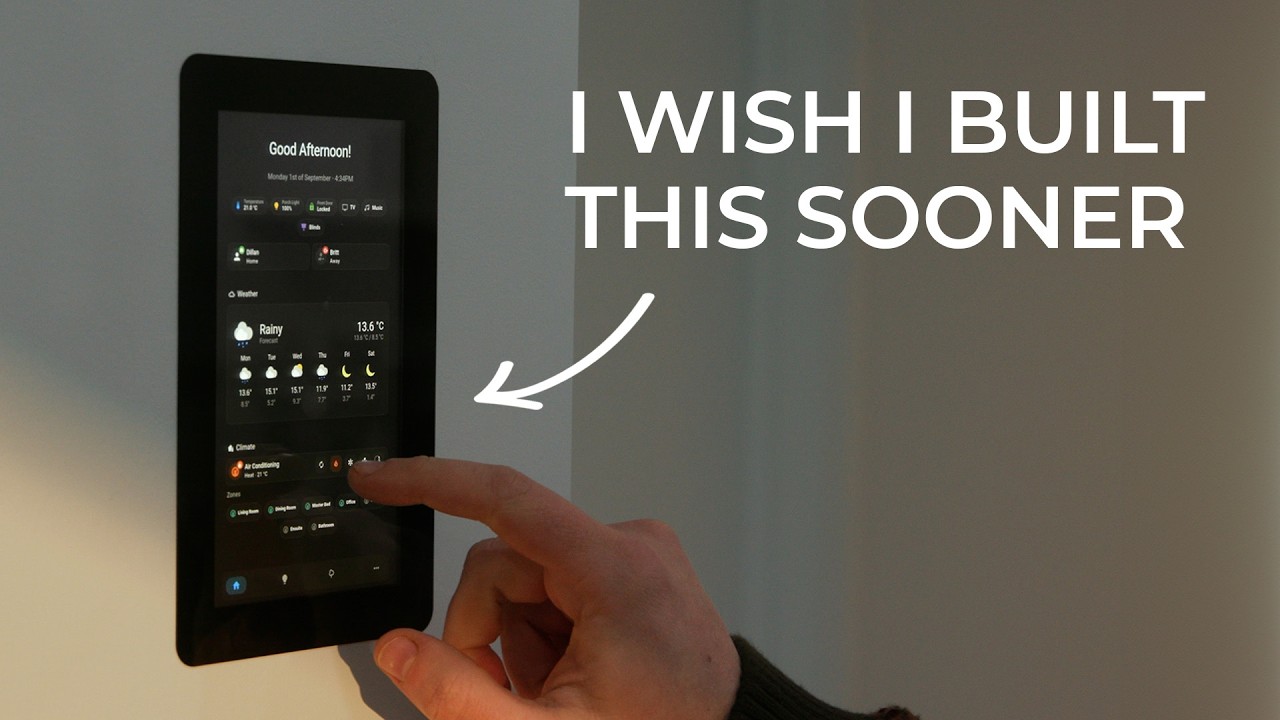](https://www.youtube.com/watch?v=uTxURzmrVtA)
|
||||
<a href="https://www.youtube.com/watch?v=uTxURzmrVtA">
|
||||
<img src="https://img.youtube.com/vi/uTxURzmrVtA/maxresdefault.jpg" alt="What My Smart Home Was Missing" title="@TheStockPot-AU" style="width:100%">
|
||||
</a>
|
||||
|
||||
Also, have a look at this curated collection of helpful videos contributed by the community:
|
||||
|
||||
<p align="center" style="width:100%">
|
||||
<a href="https://www.youtube.com/watch?v=_adl1fiXlgk">
|
||||
<img src="https://img.youtube.com/vi/_adl1fiXlgk/mqdefault.jpg" alt="Building a Home Assistant Kiosk - Why Did I Wait So Long?" title="@Jims-Garage" style="width:32%">
|
||||
</a>
|
||||
<a href="https://www.youtube.com/watch?v=uXcjx-zL_UU">
|
||||
<img src="https://img.youtube.com/vi/uXcjx-zL_UU/mqdefault.jpg" alt="Touch Display for Home Assistant with TouchKIO" title="@haus_automation" style="width:32%">
|
||||
</a>
|
||||
<a href="https://www.youtube.com/watch?v=t2YQm7GPmpY">
|
||||
<img src="https://img.youtube.com/vi/t2YQm7GPmpY/mqdefault.jpg" alt="DIY Home Assistant Kiosk Build: Raspberry Pi & 3D Printing Livestream" title="@homeautomatorza" style="width:32%">
|
||||
</a>
|
||||
</p>
|
||||
|
||||
## License
|
||||
[MIT](https://github.com/leukipp/touchkio/blob/main/LICENSE)
|
||||
|
||||
@@ -23,15 +23,15 @@ if (!process.env.DISPLAY) {
|
||||
process.exit(1);
|
||||
}
|
||||
|
||||
// Delete electron log file
|
||||
// Move electron log file
|
||||
const elog = path.join(app.getPath("logs"), "electron.log");
|
||||
try {
|
||||
if (fs.existsSync(elog)) {
|
||||
fs.unlinkSync(elog);
|
||||
fs.renameSync(elog, elog.replace(".log", ".old.log"));
|
||||
}
|
||||
console.debug = () => {};
|
||||
} catch (error) {
|
||||
console.error("Failed to delete electron log file:", error.message);
|
||||
console.error("Failed to move electron log file:", error.message);
|
||||
}
|
||||
app.commandLine.appendSwitch("log-file", elog);
|
||||
|
||||
@@ -126,14 +126,20 @@ const initApp = async () => {
|
||||
});
|
||||
|
||||
// Register process exit events
|
||||
["SIGINT", "SIGTERM", "SIGQUIT", "SIGTRAP", "exit"].forEach((signal) => {
|
||||
["SIGINT", "SIGTERM", "SIGQUIT", "exit"].forEach((signal) => {
|
||||
process.on(signal, () => {
|
||||
if (APP.exiting) {
|
||||
return;
|
||||
}
|
||||
process.exitCode = 0;
|
||||
APP.exiting = true;
|
||||
app.quit();
|
||||
});
|
||||
});
|
||||
powerMonitor.on("shutdown", () => {
|
||||
if (APP.exiting) {
|
||||
return;
|
||||
}
|
||||
process.exitCode = 0;
|
||||
APP.exiting = true;
|
||||
app.quit();
|
||||
@@ -196,7 +202,9 @@ const initArgs = async () => {
|
||||
if (argsUpdated && !("app_reset" in args)) {
|
||||
args.app_reset = "arguments";
|
||||
}
|
||||
if (fs.existsSync(APP.cache)) {
|
||||
fs.writeFileSync(argsFileHashPath, argsFileHash);
|
||||
}
|
||||
|
||||
// Set global arguments
|
||||
ARGS = args;
|
||||
@@ -212,10 +220,10 @@ const initArgs = async () => {
|
||||
const initLog = async () => {
|
||||
try {
|
||||
if (fs.existsSync(APP.log)) {
|
||||
fs.unlinkSync(APP.log);
|
||||
fs.renameSync(APP.log, APP.log.replace(".log", ".old.log"));
|
||||
}
|
||||
} catch (error) {
|
||||
console.error("Failed to delete main log file:", error.message);
|
||||
console.error("Failed to move main log file:", error.message);
|
||||
}
|
||||
|
||||
// Set log level and path
|
||||
|
||||
+16
-6
@@ -53,18 +53,17 @@ const init = async () => {
|
||||
const options = user === null || password === null ? {} : { username: user, password: password };
|
||||
options.will = { topic: `${INTEGRATION.root}/kiosk/state`, payload: "Terminated", qos: 1, retain: true };
|
||||
options.rejectUnauthorized = !("ignore_certificate_errors" in ARGS);
|
||||
options.reconnectPeriod = 10 * 1000;
|
||||
|
||||
// Client connect
|
||||
console.info("MQTT Connecting:", `${user}:${masked}@${url.toString()}`);
|
||||
// Client connecting
|
||||
const connection = `${user}:${masked}@${url.toString()}`;
|
||||
console.info("MQTT Connecting:", connection);
|
||||
INTEGRATION.client = mqtt.connect(url.toString(), options);
|
||||
INTEGRATION.client.setMaxListeners(20);
|
||||
|
||||
// Client connected
|
||||
INTEGRATION.client
|
||||
.once("connect", () => {
|
||||
console.info(`MQTT Connected: ${url.toString()}`);
|
||||
process.stdout.write("\n");
|
||||
|
||||
// Init client controls
|
||||
initApp();
|
||||
initShutdown();
|
||||
@@ -120,8 +119,19 @@ const init = async () => {
|
||||
EVENTS.on("updateScreenshot", updateScreenshot);
|
||||
EVENTS.on("consoleLog", updateErrors);
|
||||
})
|
||||
.on("connect", () => {
|
||||
console.info(`MQTT Connected: ${connection}`);
|
||||
process.stdout.write("\n");
|
||||
updateKiosk();
|
||||
})
|
||||
.on("offline", () => {
|
||||
console.warn(`MQTT Disconnected: ${connection}`);
|
||||
})
|
||||
.on("reconnect", () => {
|
||||
console.info(`MQTT Reconnecting: ${connection}`);
|
||||
})
|
||||
.on("error", (error) => {
|
||||
console.error("MQTT", error.message);
|
||||
console.error("MQTT Error:", error.message);
|
||||
});
|
||||
|
||||
// Update time sensors periodically (30s)
|
||||
|
||||
@@ -732,7 +732,13 @@ const windowEvents = async () => {
|
||||
|
||||
// Handle window status updates
|
||||
WEBVIEW.window.setStatus = async (status) => {
|
||||
if (APP.exiting) {
|
||||
return;
|
||||
}
|
||||
const apply = (func, ...args) => {
|
||||
if (APP.exiting) {
|
||||
return Promise.resolve();
|
||||
}
|
||||
func.apply(WEBVIEW.window, args);
|
||||
return new Promise((r) => setTimeout(r, 50));
|
||||
};
|
||||
|
||||
+1
-1
@@ -4,7 +4,7 @@
|
||||
"description": "Home Assistant Touch Kiosk",
|
||||
"homepage": "https://github.com/leukipp/touchkio",
|
||||
"author": "leukipp",
|
||||
"version": "1.4.1",
|
||||
"version": "1.4.2",
|
||||
"license": "MIT",
|
||||
"main": "index.js",
|
||||
"scripts": {
|
||||
|
||||
Reference in New Issue
Block a user