
191 lines
14 KiB
Markdown
191 lines
14 KiB
Markdown
# TouchKio
|
|
**TouchKio** is a Node.js application that utilizes Electron to create a kiosk mode window specifically designed for a Home Assistant dashboard.
|
|
This tool is packaged as a **.deb** file, making it easy to launch the kiosk application on any Debian based Linux [hardware](https://github.com/leukipp/touchkio/blob/main/HARDWARE.md) (e.g. **Raspberry Pi**) equipped with a **DSI or HDMI** Touch Display.
|
|
Additional releases for other Linux systems are available as **.zip** file.
|
|
|
|
[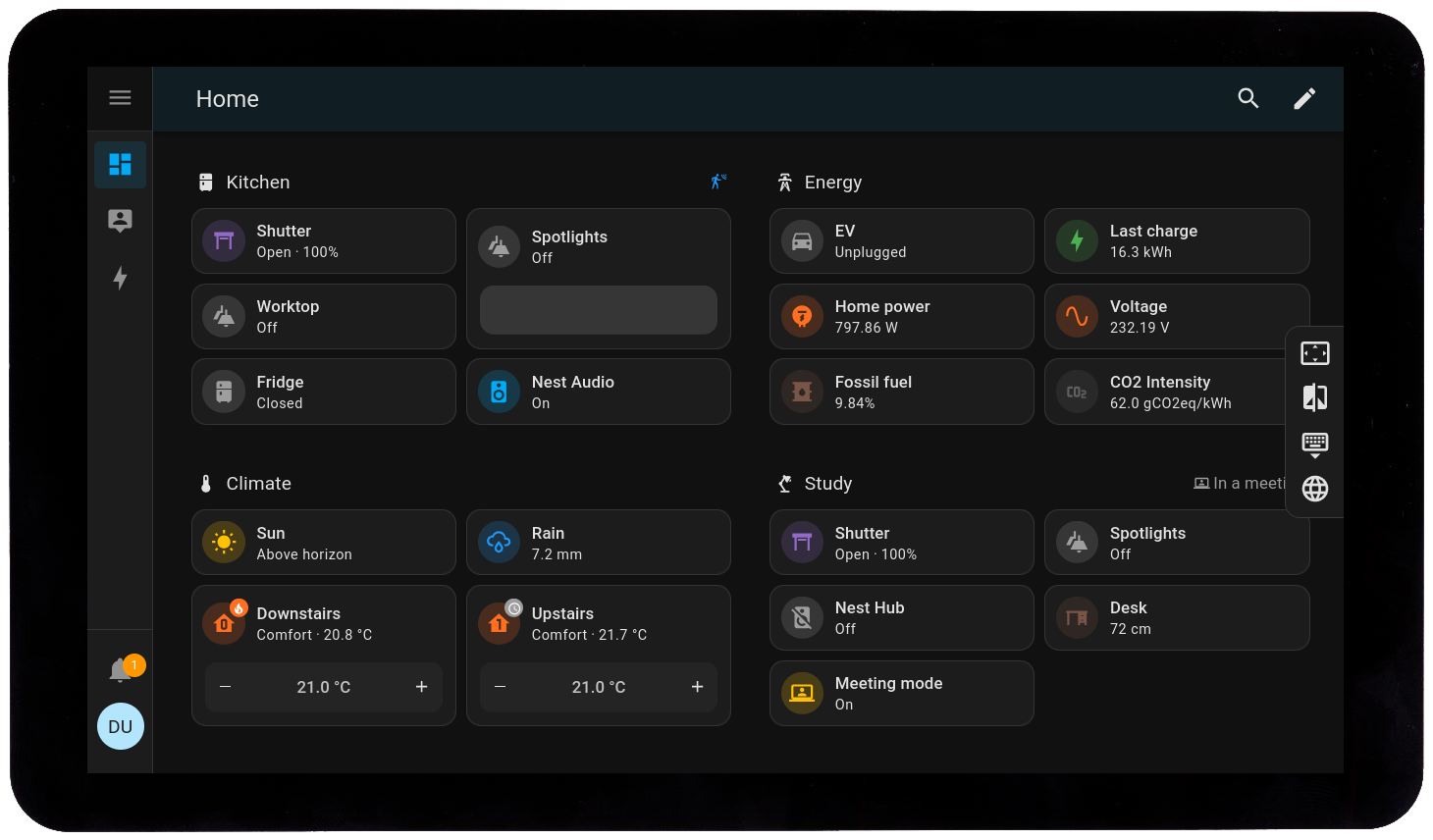](https://github.com/leukipp/touchkio/blob/main/img/display.png)
|
|
|
|
This implementation addresses common issues encountered when using the built-in browser running in fullscreen mode on a Linux device with Touch Display.
|
|
Moreover, the device running the **kiosk application** also offers several **Home Assistant MQTT** sensors, enhancing it's functionality for automation purposes.
|
|
|
|
## Features
|
|
- [x] Fast and easy setup.
|
|
- [x] Remember login credentials.
|
|
- [x] Touch friendly web browser interface.
|
|
- [x] Configurable zoom and theme support.
|
|
- [x] Single-tap screen wake-up functionality.
|
|
- [x] Remote controllable via MQTT.
|
|
- [x] Manage kiosk window status.
|
|
- [x] Manage touch keyboard status.
|
|
- [x] Touch display power and brightness.
|
|
- [x] Show available system package upgrades.
|
|
- [x] Execute system reboot and shutdown commands.
|
|
- [x] Monitor temperature, processor and memory usage.
|
|
|
|
The kiosk application can be executed with command line arguments to load a **Home Assistant dashboard in fullscreen** mode.
|
|
Additionally, a **MQTT endpoint** can be defined, allowing the application to provide controls and sensors for the Linux device and the connected Touch Display.
|
|
|
|
## Setup
|
|
Before you begin, make sure that you have a Linux device configured and operational with a [compatible](https://github.com/leukipp/touchkio/blob/main/HARDWARE.md) Touch Display.
|
|
This guide assumes that you are using a Raspberry Pi with the latest version of Raspberry Pi OS **(64-bit)**, along with a desktop environment (preferred using labwc).
|
|
However, the **.deb** setup is also compatible with any other Debian based system.
|
|
|
|
### Optional
|
|
To utilize the sensor features of your device through Home Assistant, it's essential to have a **MQTT broker running** and the **MQTT integration installed** on your Home Assistant instance.
|
|
This setup allows seamless communication between your kiosk device and Home Assistant, enabling **real-time data exchange**.
|
|
|
|
[](https://github.com/leukipp/touchkio/blob/main/img/mqtt.png)
|
|
|
|
For a comprehensive guide on setting up MQTT with Home Assistant, please refer to the official documentation available here: https://www.home-assistant.io/integrations/mqtt.
|
|
|
|
## Installation
|
|
On the first run of the application, you may encounter a **setup procedure** and the Home Assistant **login screen**.
|
|
It's recommended to create a **dedicated user** (local access only) for your kiosk device.
|
|
You might also need a keyboard or remote VNC access to input these credentials once.
|
|
|
|
#### Option 1 - The easy way
|
|
Run this command to download and install the latest **.deb** (arm64 or x64) release.
|
|
It will also create a systemd file for auto-startup and will guide you through the setup process:
|
|
```bash
|
|
bash <(wget -qO- https://raw.githubusercontent.com/leukipp/touchkio/main/install.sh)
|
|
```
|
|
If you are paranoid, or smart, or both, have a look into the [install.sh](https://github.com/leukipp/touchkio/blob/main/install.sh) script before executing external code on your machine.
|
|
|
|
<details><summary>Alternatives</summary><div>
|
|
|
|
#### Option 2 - The standard way
|
|
The [install.sh](https://github.com/leukipp/touchkio/blob/main/install.sh) script mentioned above performs the following tasks (and you just have to do it manually):
|
|
- [Download](https://github.com/leukipp/touchkio/releases/latest) the latest version file that is suitable for your architecture (arm64 or x64).
|
|
- Debian (**deb**): Open a terminal and execute the following command to install the application, e.g:
|
|
`sudo dpkg -i touchkio_1.x.x_arm64.deb && touchkio --setup`
|
|
- Others (**zip**): Extract the archive and run the binary, e.g: `unzip touchkio-linux-x64-1.x.x.zip && cd touchkio-linux-x64 && ./touchkio --setup`
|
|
- If you just want to load a Home Assistant dashboard without further control you are good to go, e.g: `touchkio --web-url=https://demo.home-assistant.io`
|
|
- The `--web-url` doesn't necessarily need to be a Home Assistant url, any kind of website can be shown in kiosk mode.
|
|
- Only when using the MQTT integration via `--mqtt-*`, a running Home Assistant instance is required.
|
|
- If you need the application to be automatically started on boot, create a systemd file.
|
|
|
|
#### Option 3 - The hard way
|
|
Pre-built release files are available for arm64 and x64 Linux systems.
|
|
If you are using a different architecture, you can still utilize this repository to build your own application.
|
|
|
|
For more information, please refer to the [development](https://github.com/leukipp/touchkio?tab=readme-ov-file#development) section. However this could do the job:
|
|
```bash
|
|
yarn build
|
|
```
|
|
|
|
</div></details>
|
|
|
|
## Configuration
|
|
Running `touchkio --setup` will prompt you to enter arguments that will be used when the application starts without any specified arguments.
|
|
These default arguments are stored in `~/.config/touchkio/Arguments.json`, where they can also be modified.
|
|
|
|
### WEB
|
|
The available arguments to control the kiosk application via terminal are as follows:
|
|
| Name | Default | Description |
|
|
| ------------------------ | ------- | ------------------------------------------------------ |
|
|
| `--web-url` (Required) | - | Url of the Home Assistant instance (HTTP(S)://IP:PORT) |
|
|
| `--web-theme` (Optional) | `dark` | Theme settings of the web browser (`light` or `dark`) |
|
|
| `--web-zoom` (Optional) | `1.25` | Zoom settings of the web browser (`1.0` is `100%`) |
|
|
|
|
These arguments allow you to customize the appearance of the web browser window.
|
|
|
|
For example:
|
|
```bash
|
|
touchkio --web-url=http://192.168.1.42:8123 --web-theme=dark --web-zoom=1.25
|
|
```
|
|
|
|
### MQTT
|
|
To broadcast your local sensor data to Home Assistant, you can use the following arguments, which require a running MQTT broker:
|
|
| Name | Default | Description |
|
|
| ----------------------------- | --------------- | ---------------------------------------------------------------------------------------- |
|
|
| `--mqtt-url` (Required) | - | Url of the MQTT broker instance (MQTT(S)://IP:PORT) |
|
|
| `--mqtt-user` (Required) | - | Username which is available in Home Assistant (e.g. create a user named `kiosk`) |
|
|
| `--mqtt-password` (Required) | - | The password of the user (e.g. use `password`, because it's secure and easy to remember) |
|
|
| `--mqtt-discovery` (Optional) | `homeassistant` | The discovery prefix for MQTT (`homeassistant` works with default setups) |
|
|
|
|
When you start the application with the MQTT arguments, the Home Assistant auto-discovery feature will automatically add controls and sensors that can be used for further integration.
|
|
You can find them under **Settings** -> **Devices and Services** -> **Devices** by searching for **TouchKio**.
|
|
|
|
For example:
|
|
```bash
|
|
touchkio --web-url=http://192.168.1.42:8123 --mqtt-url=mqtt://192.168.1.42:1883 --mqtt-user=kiosk --mqtt-password=password
|
|
```
|
|
|
|
## Development
|
|
To create your own local build, you first need to install [Node.js](https://pimylifeup.com/raspberry-pi-nodejs) and [Yarn](https://classic.yarnpkg.com/lang/en/docs/install).
|
|
|
|
Clone this repository and run `yarn install` to install the dependencies.
|
|
Then use `yarn start` to execute the start script located in [package.json](https://github.com/leukipp/touchkio/blob/main/package.json) file.
|
|
There you can adjust the `--web-url` and other arguments for development runs.
|
|
|
|
If you connect to your device via SSH, you may have to export display variables so that the kiosk application can be loaded inside the desktop environment:
|
|
```bash
|
|
export DISPLAY=":0"
|
|
export WAYLAND_DISPLAY="wayland-0"
|
|
```
|
|
|
|
### The nitty gritty
|
|
|
|
<details><summary>Don't waste your time reading this.</summary><div></br>
|
|
|
|
The Raspberry Pi's **build-in on-screen keyboard** named `squeekboard` (it squeaks because some *Rust* got inside), is specifically designed for Wayland environments and features a **D-Bus interface** that allows applications to show or hide the keyboard as needed.
|
|
The kiosk application interacts with squeekboard via this `D-Bus` object path `/sm/puri/OSK0`, enabling the keyboard to be hidden or shown based on **MQTT** user input or system events.
|
|
|
|
The Raspberry Pi's **build-in screen blanking** function uses the command `swayidle -w timeout 600 'wlopm --off \*' resume 'wlopm --on \*' &` inside `~/.config/labwc/autostart` to blank the screen after **10 minutes**.
|
|
The `wlopm --off \*` command changes the `bl_power` value to **4**, when setting the value to **0** the screen will turn on again.
|
|
However, `swayidle` still seems to consider the screen to be off and as a result it will not turn off again unless there is some interaction in the meantime.
|
|
|
|
When using the MQTT integration, the kiosk application must be able to **detect changes** made on the **device** itself.
|
|
I managed to achieve this for the `brightness` file by implementing a simple `fs.watch(..)` file listener.
|
|
However, I found that it **never triggered** for the `bl_power` file.
|
|
Although the file content changes, none of the filesystem listeners where fired.
|
|
This could be due to `swayidle`/`wlopm` performing write actions at a deeper level that are not detectable by file listeners.
|
|
As a result, I went for a **polling solution**, checking the state of the file every **500 milliseconds** for any changes.
|
|
While I understand this is not ideal, it's necessary to ensure proper functionality.
|
|
|
|
The display power status and brightness can be adjusted via the MQTT integration.
|
|
**Support** for changing the power status on **DSI and HDMI** displays is achieved by checking for connected screens in `/sys/class/drm/*/status`.
|
|
Support for changing the brightness of connected display is implemented by using `/sys/class/backlight/*/brightness`.
|
|
In cases where no supported backlight device is found, the Home Assistant light entity will only show an on/off switch without brightness control.
|
|
|
|
Keep in mind that default arguments are stored as plain text in `~/.config/touchkio/Arguments.json`.
|
|
This file also includes the **MQTT user password**, which is somewhat obfuscated/encrypted, but in a way that it could be easily reverse engineered.
|
|
Implementing stronger **security measures** would complicate the setup process and could discourage some users from configuring the application properly.
|
|
When using the kiosk application without initializing the default arguments, you will need to provide them with every command.
|
|
This means that the password may be stored as plain text in various files, such as `touchkio.service`, `~/.bash_history`, etc.
|
|
|
|
To resolve the issue where the first **touch** on a **turned-off screen** triggers a **click event** (which could inadvertently activate Home Assistant actions), a workaround needed to be implemented.
|
|
When the screen **turns off** the **focus** is removed from the kiosk window.
|
|
This way, the first click only turns the screen on and focuses the window, allowing subsequent clicks to work as expected.
|
|
|
|
Additionally, to address the problem that scrolling only works with the **web browser scrollbar** on the right, the application is configured to **simulate a touch device** using `Emulation.setEmitTouchEventsForMouse`.
|
|
This adjustment provides a user experience similar to that of a proper mobile device.
|
|
|
|
Electron apps are known to be **resource intensive** due to their architecture and the inclusion of a full web browser environment. If you just run the kiosk application without other heavy loads, everything should run smoothly.
|
|
|
|
</div></details>
|
|
|
|
## Issues
|
|
Please have a look into the [hardware](https://github.com/leukipp/touchkio/blob/main/HARDWARE.md) documentation if you ran into any issues.
|
|
|
|
**Minimal features** are designed to run on any system without issues:
|
|
- A webview kiosk window launched in fullscreen mode and loading the specified `--web-url` website should not cause any problems.
|
|
|
|
**Extended features** become available when the `--mqtt-*` arguments are provided and the hardware is supported:
|
|
- Sensor features that may work out of the box include those that do not require any interaction with the display or keyboard.
|
|
- If your hardware is not fully compatible there should be no crashes, but you may miss some sensors.
|
|
|
|
**Known Issues** that are by-design or for which there is so far no solution:
|
|
- You can use Raspberry Pi's build-in screen blanking functionality, however, if the screen is turned on through Home Assistant after being automatically turned off, it will remain on indefinitely.
|
|
- It's recommended to either use the built-in screen blanking feature or implement a Home Assistant automation (e.g. presence detection) to manage the screen status.
|
|
- Hyperlinks that redirect the browser away from the main window are intentionally disabled.
|
|
- This decision was made to maintain a clean design, as navigation buttons to move back and forth between different sites were not included.
|
|
- On Raspberry Pi's terminal you may see some *ERROR:gbm_wrapper.cc* messages.
|
|
- This appears to be a [known issue](https://github.com/electron/electron/issues/42322) that currently lacks a fix, but the webview still works.
|
|
|
|
## Credits
|
|
Inspired by the one and only Raspberry Pi Master Lord, [Jeff Geerling](https://www.jeffgeerling.com/blog/2024/home-assistant-and-carplay-pi-touch-display-2).
|
|
|
|
## License
|
|
[MIT](https://github.com/leukipp/touchkio/blob/main/LICENSE)
|